Anthropic Claude Enterprise
The Anthropic Claude Enterprise Cloud Connector uses Anthropic's Compliance API to provide visibility into Claude usage across your organization. The integration monitors chats, chat file uploads, and project files, and performs content inspection to detect sensitive data shared with or generated by Claude.
Requirements
The integration requires the following to function:
IMPORTANT
Use the Compliance API key only for Cyberhaven. Do not share or reuse it for other applications or scripts. Rotating or revoking the key in any other context will break the connector.
Coverage
The connector provides visibility into the following activities:
Chats
- User messages sent to Claude (prompts)
- Assistant responses (completions)
- File uploads within chats
Projects
- Files uploaded to projects
Content inspection
The connector inspects three types of content for sensitive data:
- Chat transcripts: The full chat text, including user prompts and assistant responses.
- Chat file attachments: Files uploaded by users inside chats.
- Claude-generated files: Files Claude produces during a chat, such as code interpreter output, generated documents, and rendered HTML.
File scanning respects the file type and file size filters configured in scan settings. Files larger than 25 MB are skipped.
Metadata collected
For each chat event, the connector collects:
- Chat ID and title
- Message author (user or assistant) and model used
- File references (file ID and file name)
- Project ID and name (when the chat is attached to a project)
- Organization ID
- Timestamp of each message
Limitations
- The Compliance API key does not expire, and its scopes are fixed at creation. To change scopes, the organization's Primary Owner must create a new key in the Anthropic Console and re-authenticate the connector.
- Files larger than 25 MB are skipped during content inspection.
Anthropic-side data retention
The following retention behaviors are enforced by Anthropic and are outside Cyberhaven's control:
- Activity Feed events are retained for 6 years and become queryable within approximately one minute of the underlying action.
- Content deleted through the Compliance API is removed immediately and permanently. Chats, files, projects, and project documents deleted through the API have no recovery window.
- Content removed by your Claude retention policy is no longer available through the Compliance API and cannot be backfilled.
Anthropic Claude Enterprise Deployment
This guide outlines the steps to deploy the Anthropic Claude Enterprise Cloud Connector in the Cyberhaven Console. The integration uses Anthropic's Compliance API with a Compliance API key to read chats, project files, and user data from your Anthropic Claude Enterprise organization.
Before you begin, review the prerequisites: Anthropic Claude Enterprise prerequisites.
Set up Anthropic prerequisites
Complete these steps in your Anthropic Console before configuring the connector in Cyberhaven. You must be the Primary Owner of the organization to enable the Compliance API and mint the key.
- Sign in to claude.ai using your Primary Owner credentials.
- Go to Organization settings > Data and privacy.
- Locate the Compliance API section and click Enable.
- In the same Data and privacy page, click Create key and grant the following scopes:
- read:compliance_activities
- read:compliance_user_data
- read:compliance_org_data
- Copy the Compliance API key and store it safely. Anthropic only displays the key once.
- Go to Organization settings > Organization and access > Organization and copy your Organization ID.
Connect Cyberhaven to Anthropic Claude Enterprise
To connect your Anthropic Claude Enterprise organization, log in to your Cyberhaven Console and follow these steps:
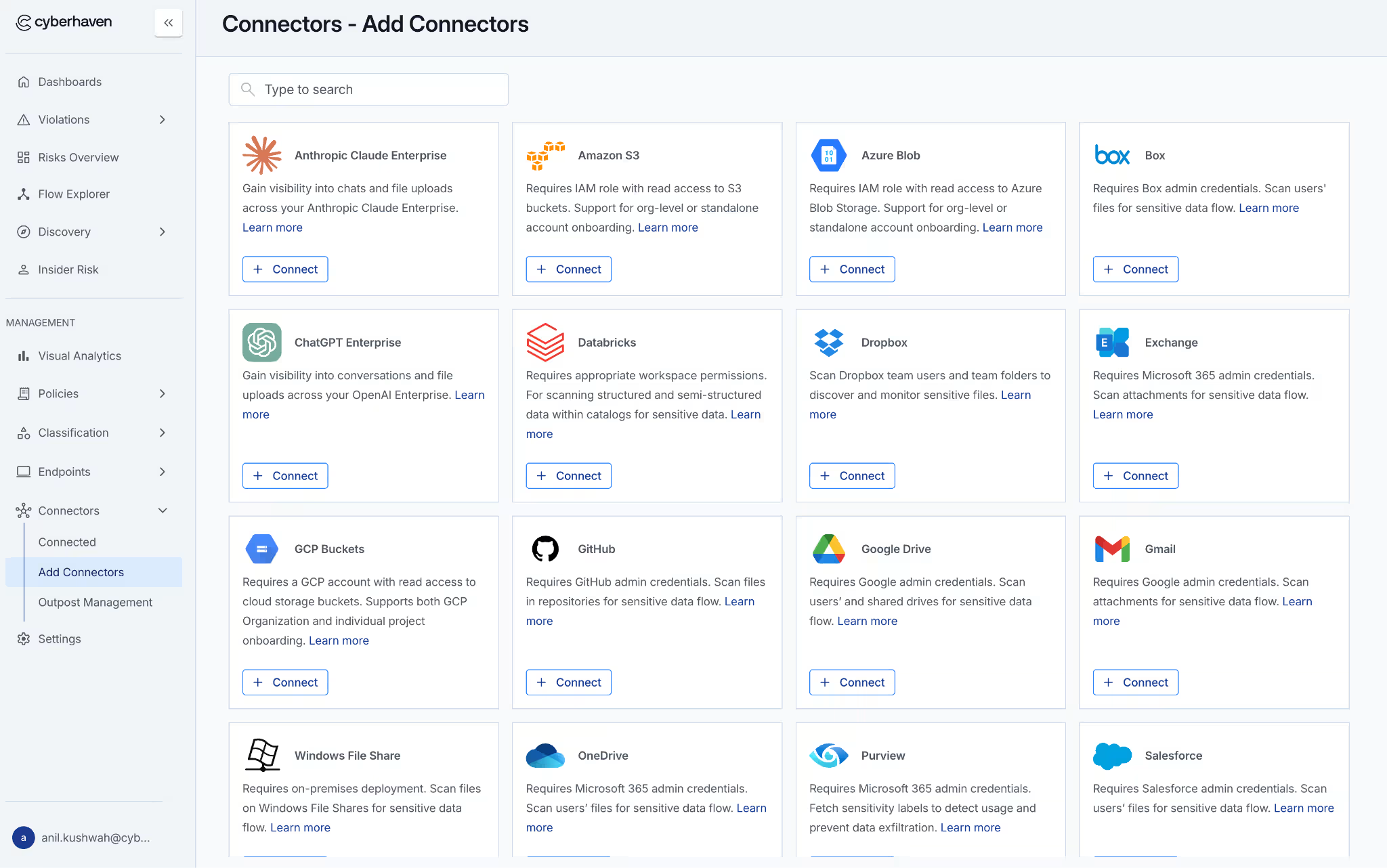
- In the Cyberhaven Console, click Connectors in the left navigation bar.
- Click the Add connectors tab and then click Connect on the Anthropic Claude Enterprise card.
-
-
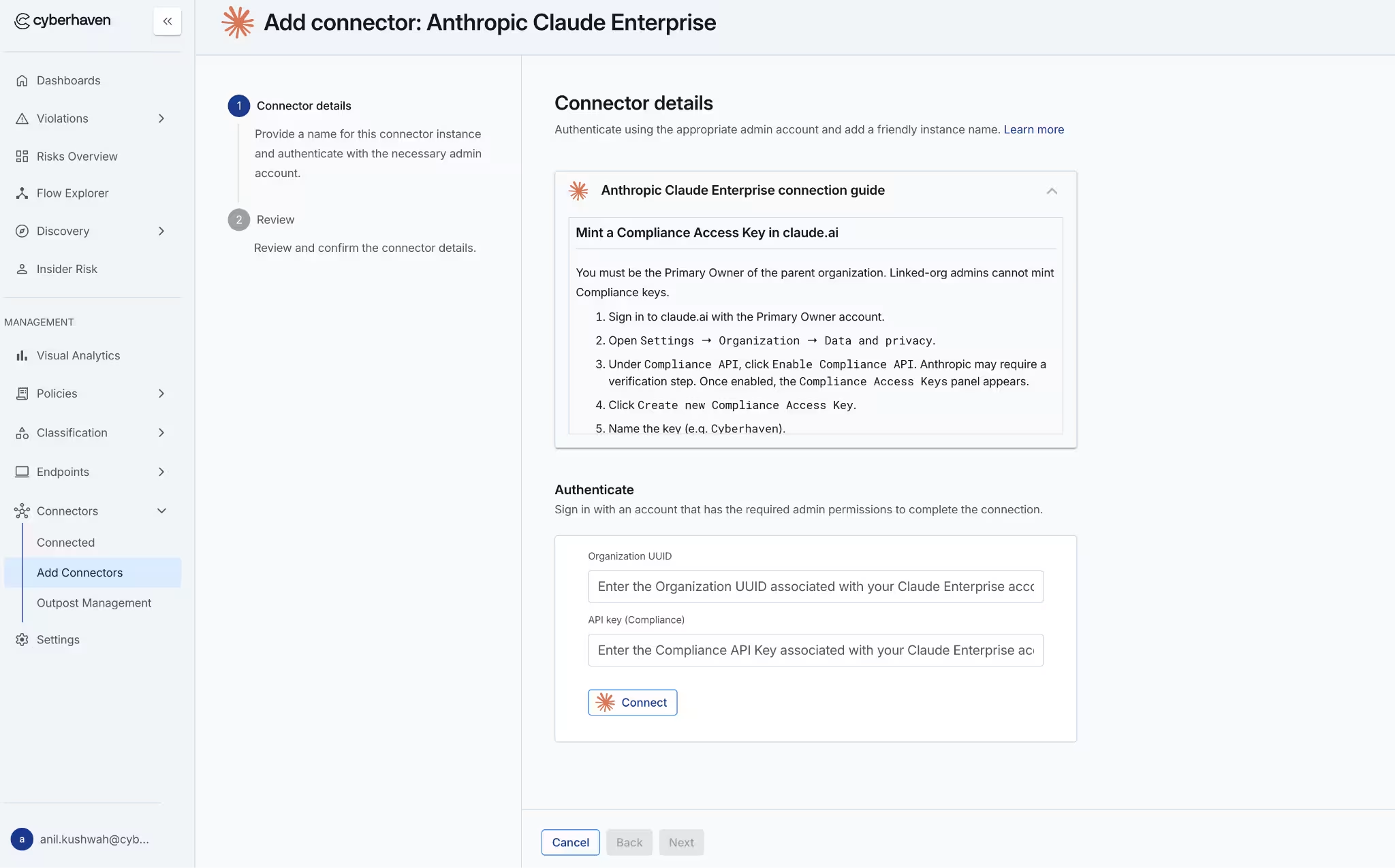
- On the Add Connector window, follow the instructions in the connection guide under Connector details.
-
-
-
- Enter your Organization ID from the Anthropic prerequisites step.
- Enter your Compliance API Key. The key must have all three required scopes: read:compliance_activities, read:compliance_user_data, and read:compliance_org_data.
-
-
-
-
-
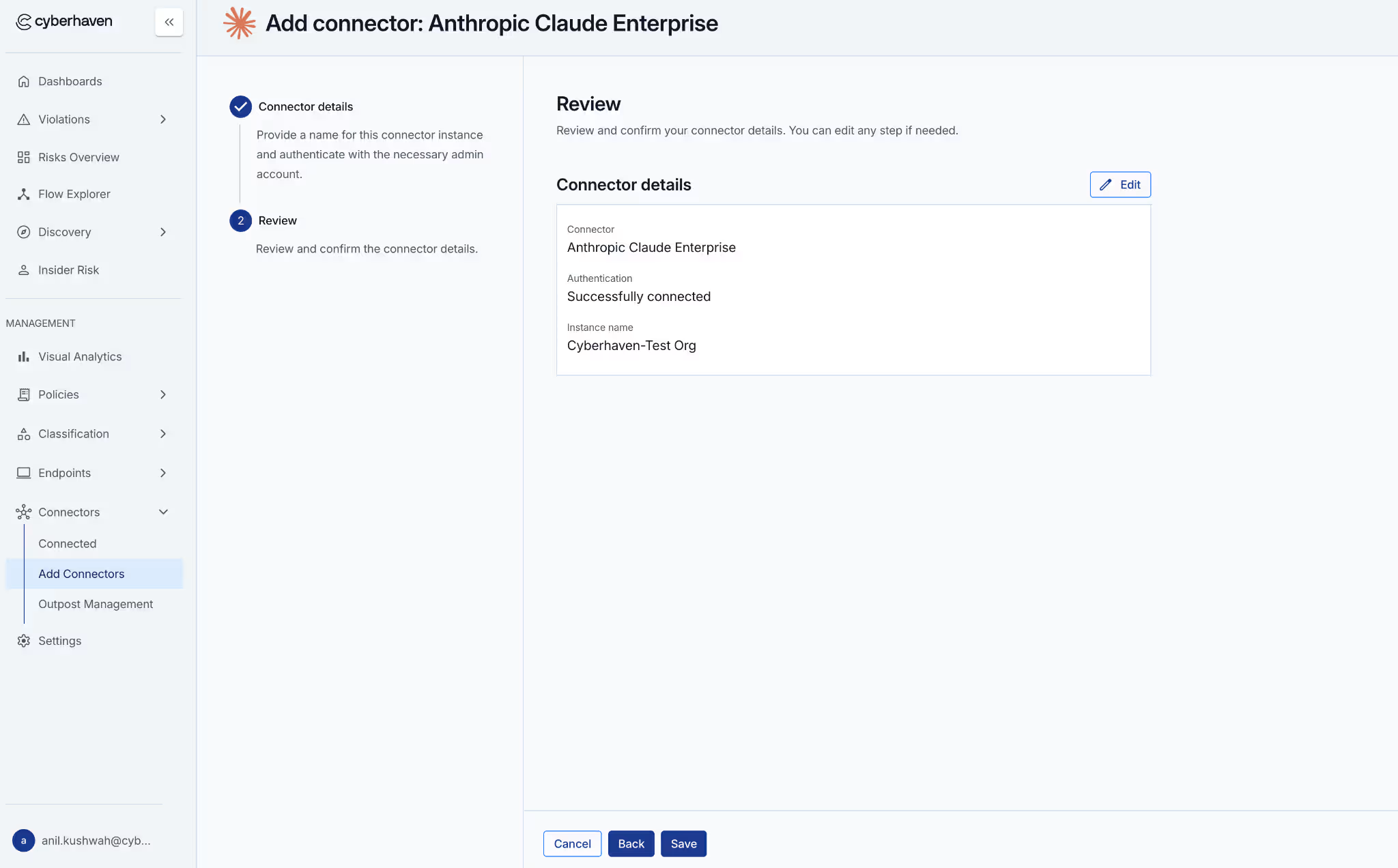
- Click Connect.
- Review the connector details and click Save.
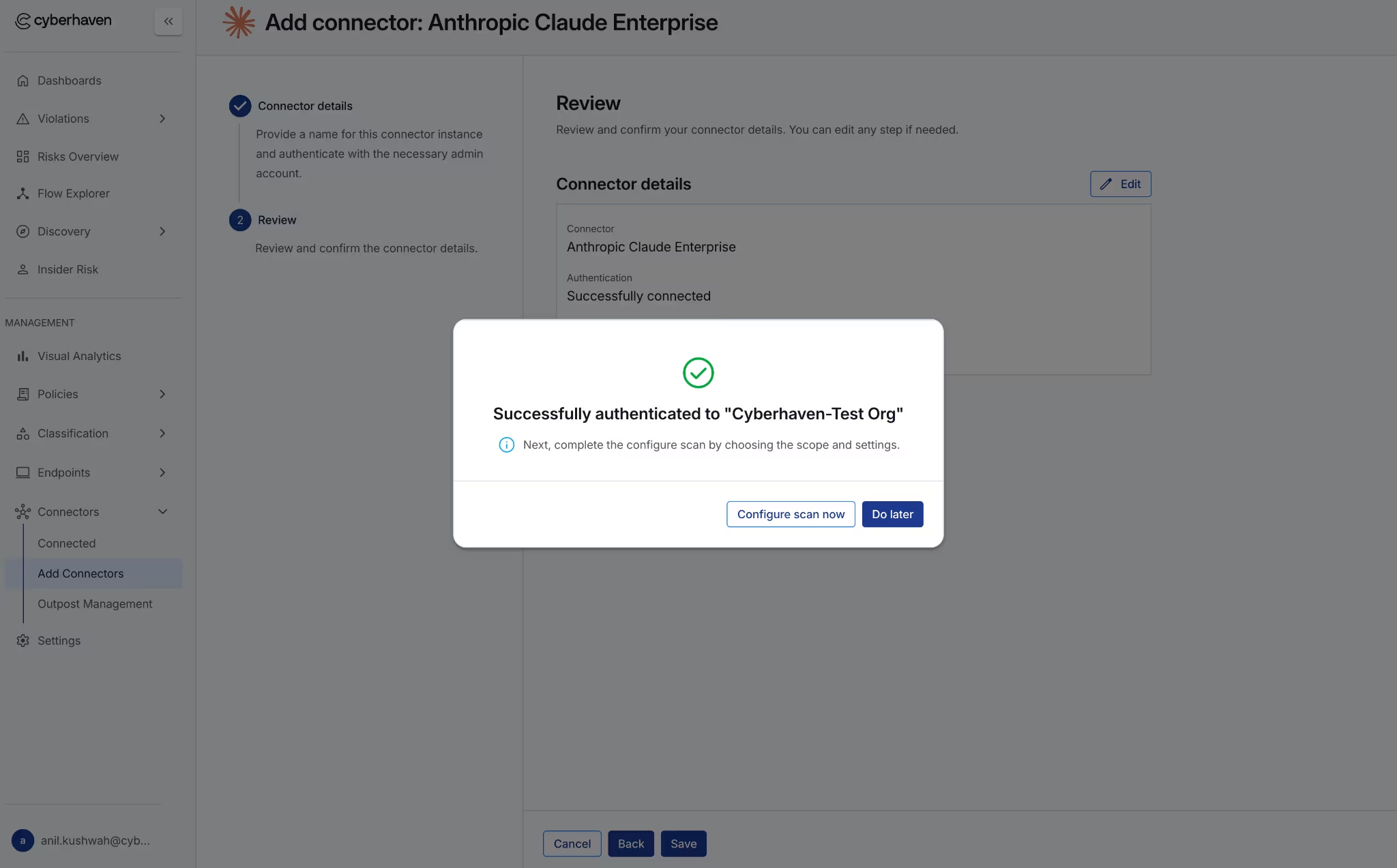
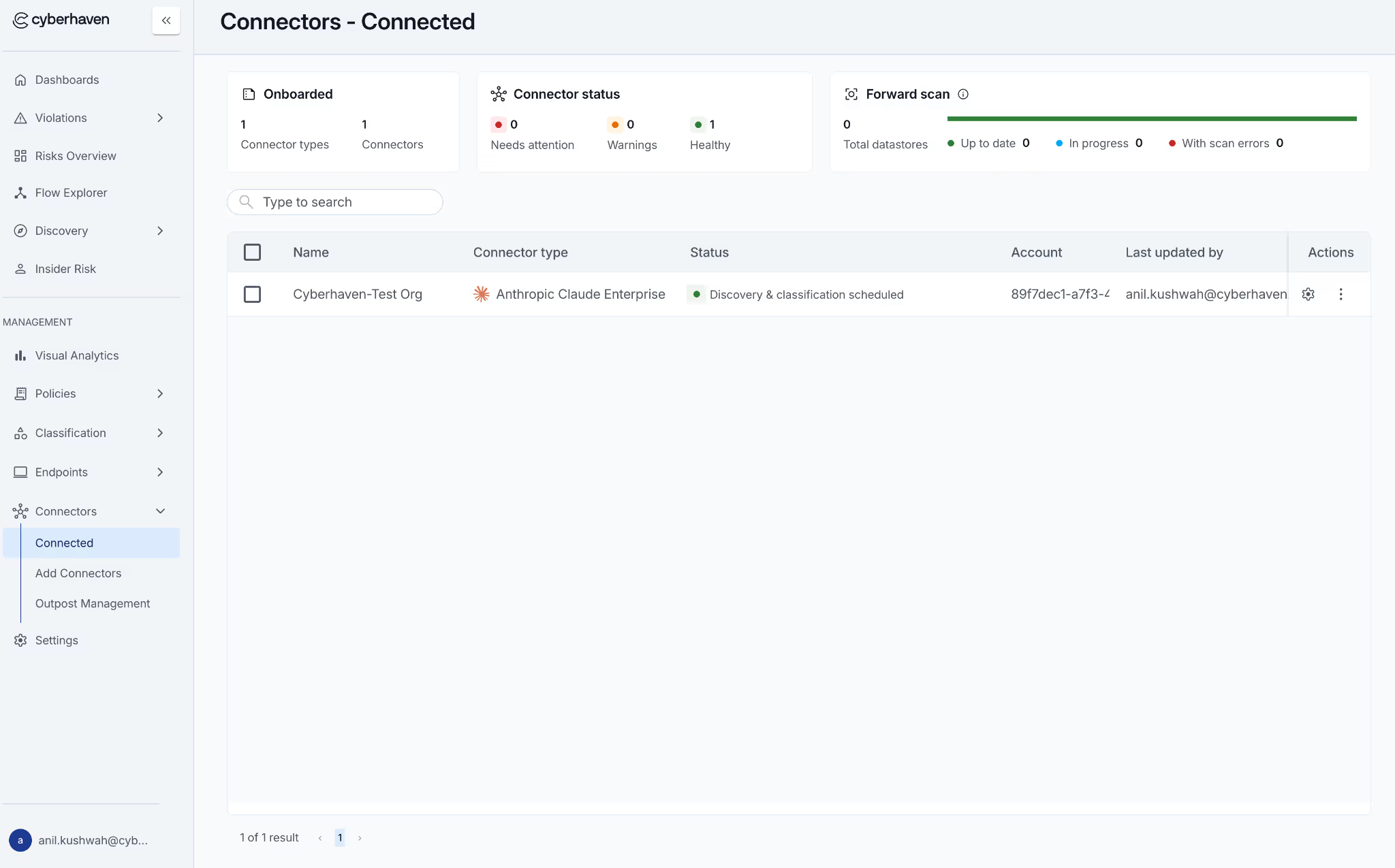
The newly connected Anthropic Claude Enterprise connector is displayed in the Connected tab. You can now click on the connector to configure scope and scan settings.
After connection, Cyberhaven begins retrieving Anthropic Claude Enterprise compliance data. Events may take up to 30 minutes to appear in the Console after they occur in Claude.
Configure Scan
Once the Anthropic Claude Enterprise connector is connected, you can configure historical and forward scans to discover and classify chats and project content in your Anthropic Claude Enterprise organization. Forward scans continuously discover and classify new chats and content after scan configuration. Historical scans provide coverage by scanning chats and content created before the configuration.
- On the Connected tab of the Connectors page, click the gear icon next to the connector.
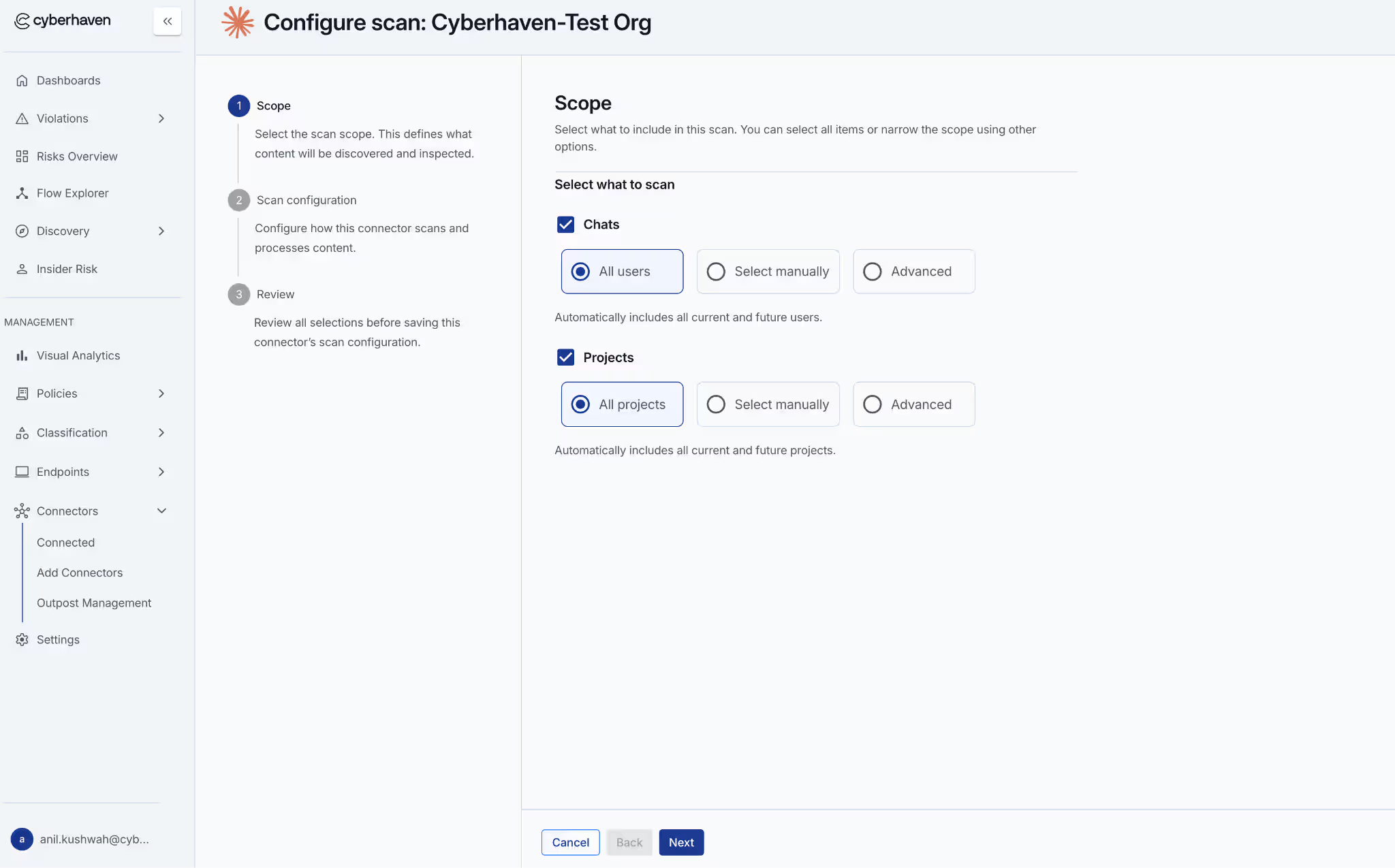
- Under Scope, choose what content to scan. Click Next.
- Chats: Scan user-assistant chat transcripts. When enabled, choose which users to include:
- Select All users to include all current and future users.
- Use Select manually to include or exclude specific users by searching and checking the boxes.
- Select Advanced to enter one or more regex patterns to dynamically define the scope of users.
- Projects: Scan files uploaded to projects. When enabled, choose which projects to include:
- Select All projects to include all current and future projects.
- Use Select manually to include or exclude specific projects by searching and checking the boxes.
- Select Advanced to enter one or more regex patterns to dynamically define the scope of projects.
- Chats: Scan user-assistant chat transcripts. When enabled, choose which users to include:
-
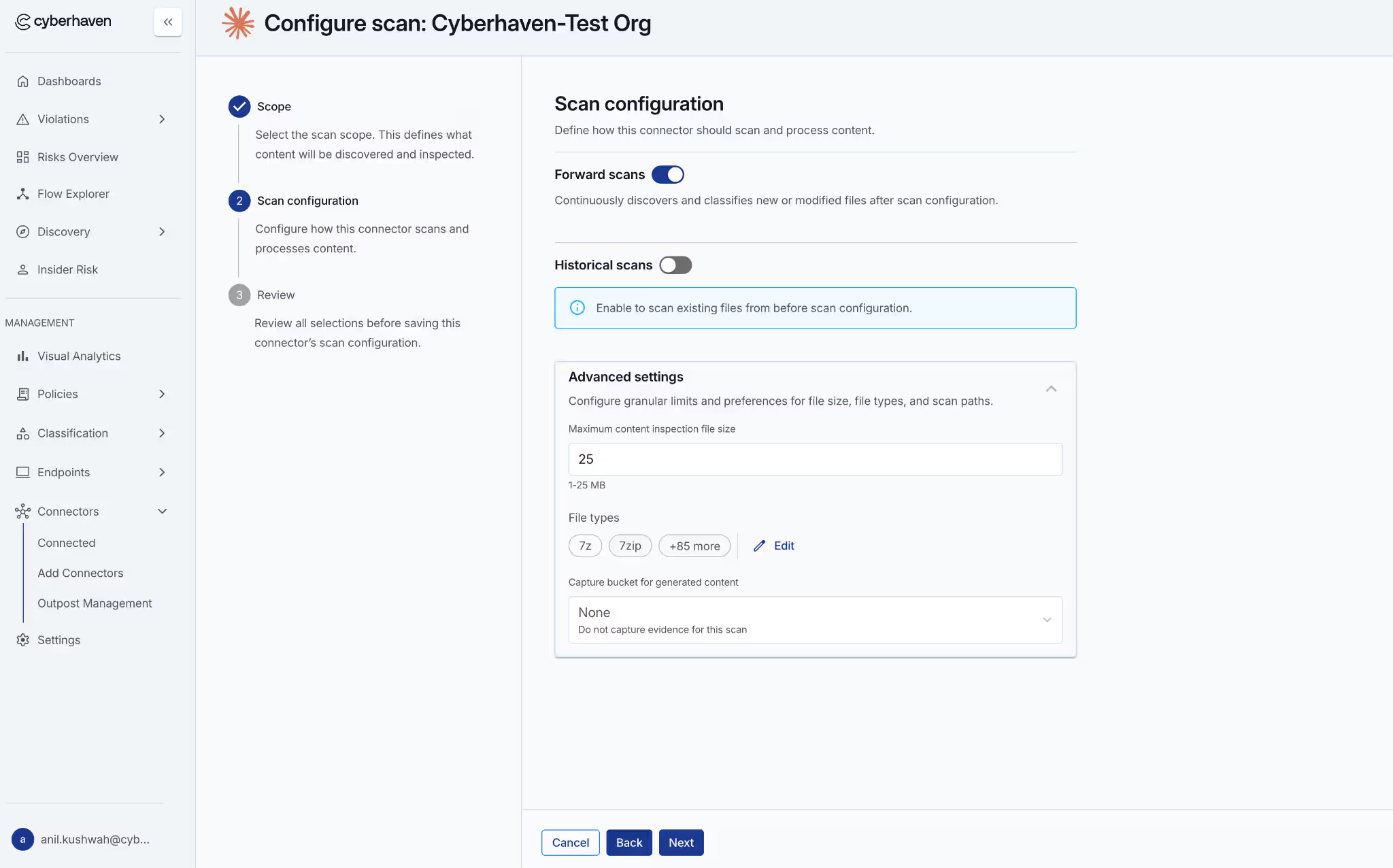
- In the Scan configuration section, enable the scan type and define the scan parameters.
- Enable Forward scans to continuously discover and classify new or modified content.
- Enable Historical scans to scan content created before this configuration.
- In the Max last modified days field, enter the number of days of history you want to scan.
- Expand Advanced settings to configure granular limits and preferences:
- Maximum content inspection file size: Set the maximum file size (in MB) for content inspection. Anthropic-side limits skip files larger than 25 MB regardless of this setting.
- File types: Click the Edit icon to adjust the list of file types to be included in the scan.
- Capture bucket for generated content: Choose a configured external storage location to store evidence files, or select None to disable evidence capture for this scan.
-
-
-
- Click Next.
- Review your scope and scan configuration and click Save.
Re-authenticate Connector
If your Anthropic Primary Owner rotates the Compliance API key, you need to re-authenticate the connector with the new key:
- On the Connected tab, click the three-dot menu next to the connector and select Reauthenticate.
- Enter the new Compliance API key. The Organization ID should not be changed.
- Click Connect to complete re-authentication.
Delete Connector
To delete the connector, click the three-dot menu next to the connector and click Delete.
Troubleshooting
- Authentication failed: Verify the Compliance API key has all three required scopes (read:compliance_activities, read:compliance_user_data, read:compliance_org_data) and is live in the target organization. Keys without these scopes cannot access the Compliance API.
- No events appearing: It may take 30 minutes to 1 hour for events to appear in the Cyberhaven Console. Verify the connector shows as Connected in the Console and that the Organization ID is correct.
- Rate limit errors: Anthropic enforces rate limits on the Compliance API (typically 600 requests per minute). The connector handles this automatically with backoff and retry. If errors persist, verify no other applications are using the same Compliance API key.
This connector is available with a DSPM license in Cyberhaven Platform version 26.07.
Learn How to Secure the Agentic Enterprise
Our insights on protecting data across human and agent workflows, plus product news, event updates, and opportunities.